How to publish your tracks to Roblox
Follow this guide to easily publish your Synthaly Music tracks to Roblox and ensure they meet the platform’s content guidelines for approval.
Written By Synthaly Team
Last updated About 2 months ago
Important Content Guidelines
Before uploading your track, ensure it meets the following requirements:
Tracks must not contain explicit, private, or moderated content.
Cover art must not include inappropriate or prohibited imagery.
Display names, track titles, and all metadata must be free of explicit language.
AI-generated tracks are not permitted.
Step 1: Submit Your Track(s) to Synthaly Music
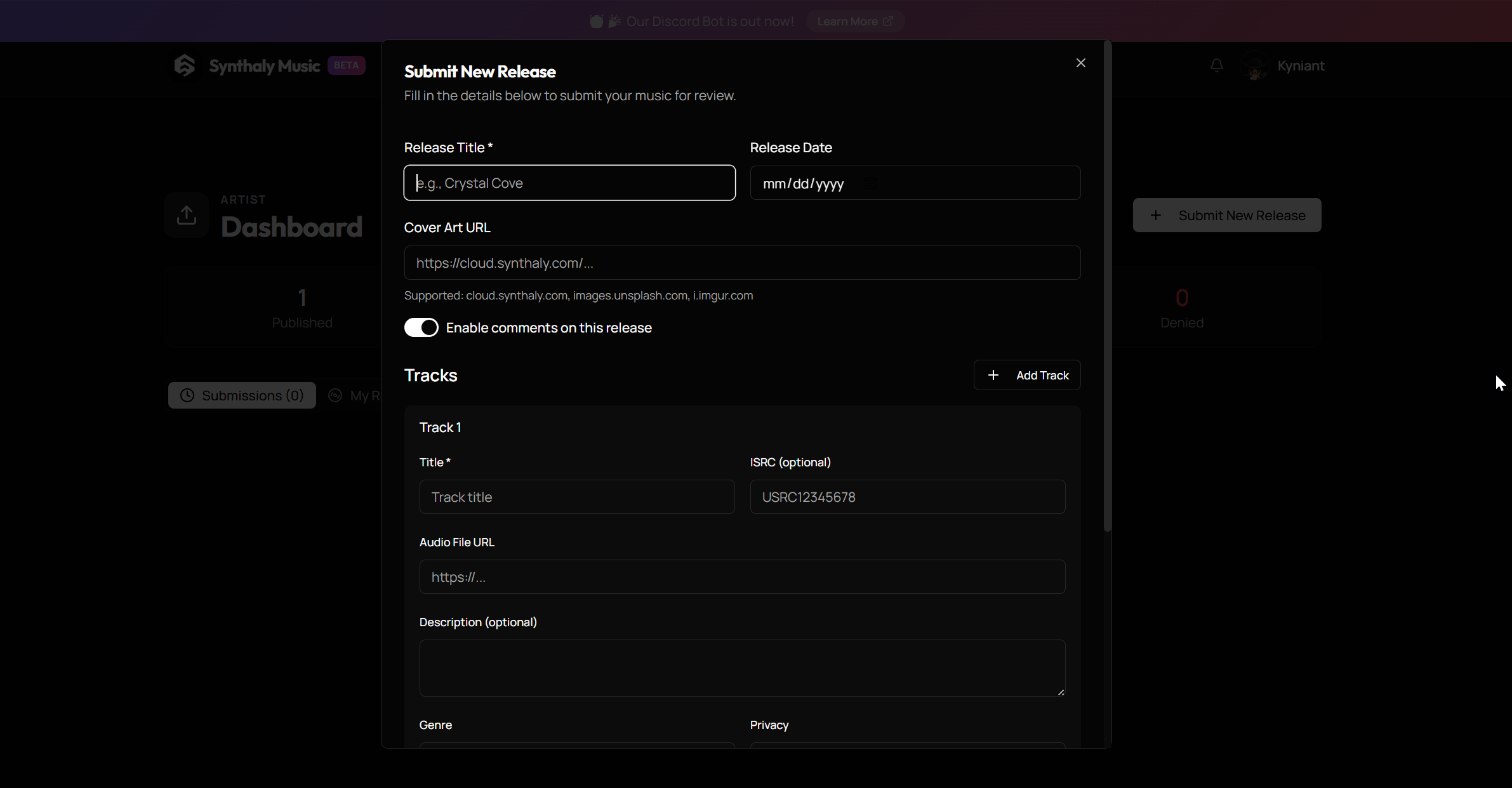
Go to your Artist Dashboard:
Access your Artist Dashboard to begin the submission process.
Select the “Submit New Release” option to submit a new release.
Upload your track and cover art:
Follow the on-screen prompts to upload your music file and artwork.
Make sure all content complies with the guidelines before submitting.
Step 2: Request Roblox Publishing
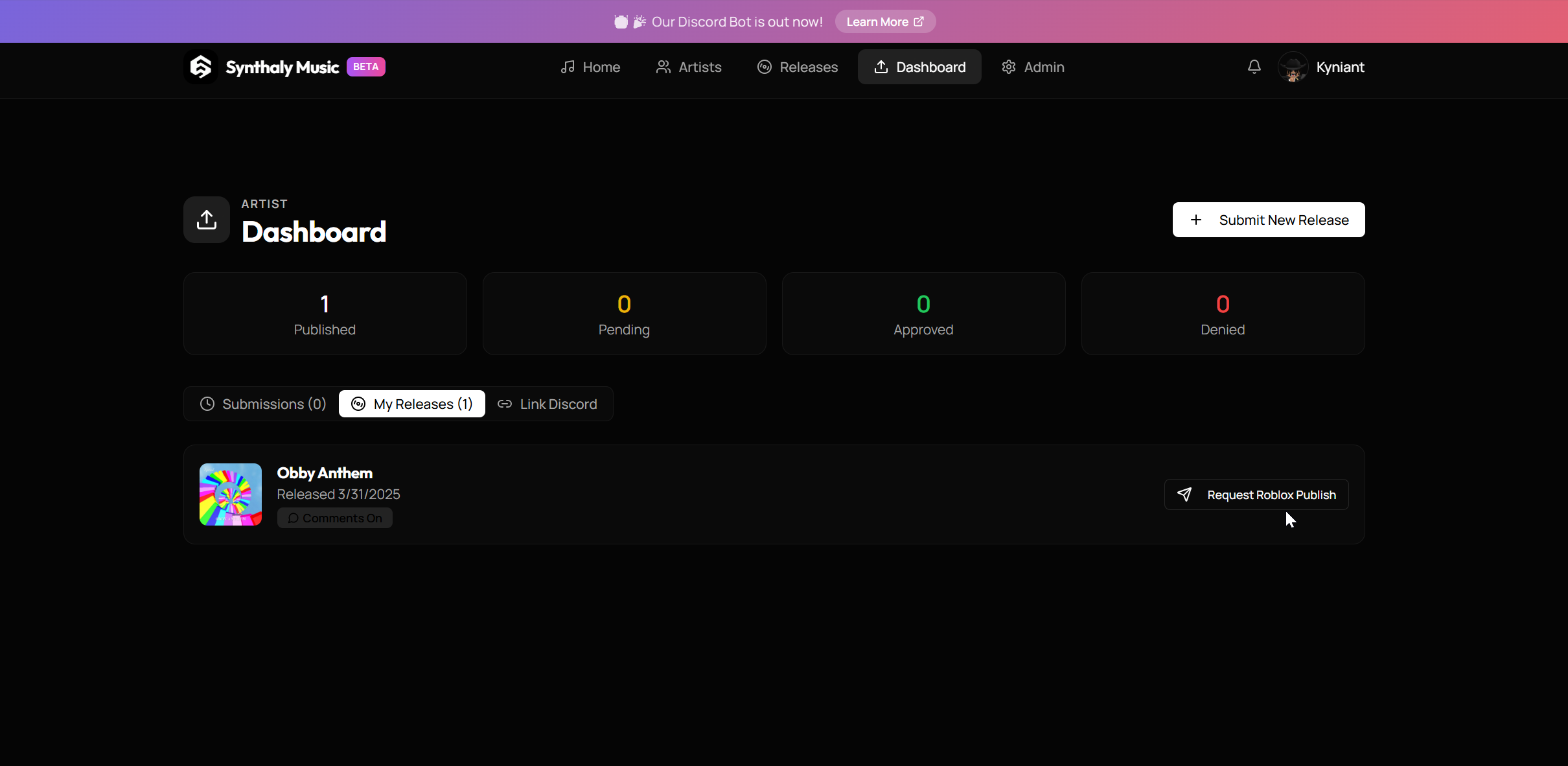
Select the “My Releases” tab:
After uploading, navigate to the My Releases section in your Artist Dashboard to view your track and its status.
Select “Request Roblox Publish”:
Click Request Roblox Publish next to the release you want to submit to Roblox.
Step 3: Manual Review Process
All tracks submitted for Roblox publishing undergo a manual review by Synthaly Music staff.
Please allow several days for this process. This review ensures that all content meets Roblox platform standards.
Step 4: Check Roblox for Your Track
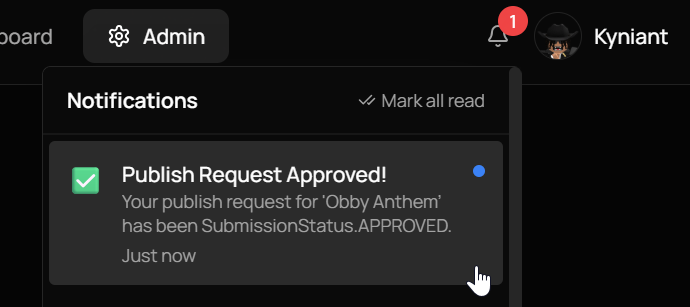
Once approved, your track will be submitted to Roblox. You will receive a notification in your inbox and via email confirming the status.
Track Review Status:
After the manual review, your track will be sent to Roblox. If it's approved, you'll receive a message in your inbox and an email. It'll look something like this:
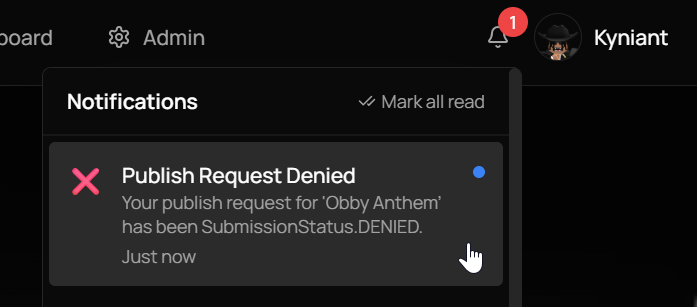
Track Not Found?
If you don't see your track on Roblox, check your inbox for a message or check your email. It'll look something like this:
Track approved:
If you received a message about your track getting approved try searching for it on a Roblox catalog, it'll look something like that:
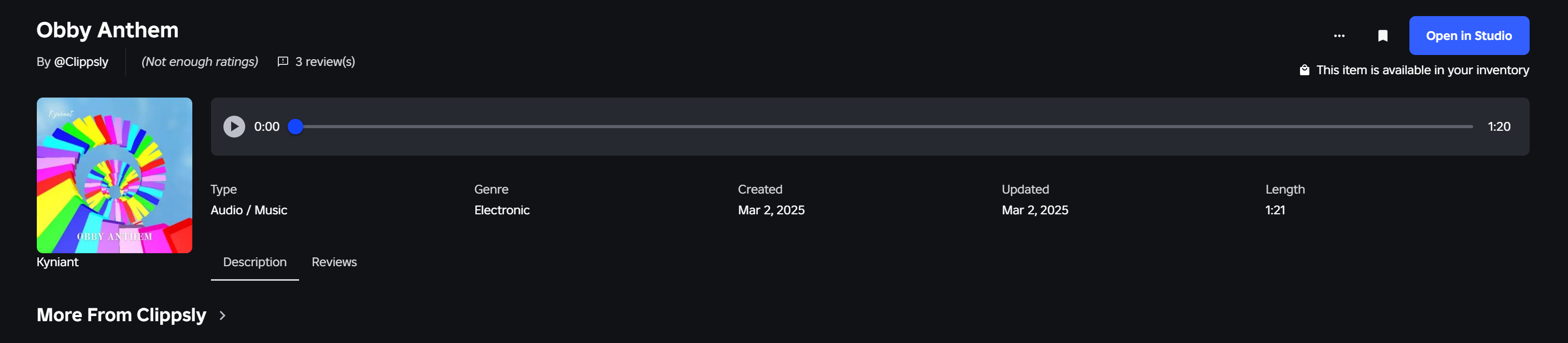
By following these steps, you can successfully publish your music from Synthaly Music to Roblox. If you experience any issues, contact Synthaly Music Support for assistance.
Happy creating!